Collision
By default, splats in the viewer have no physical presence — the camera flies right through them. The Collision section in Studio attaches a voxel representation of the scene to your splat so the viewer can collide against it. With collision attached, your splat becomes walkable — visitors can navigate it on foot rather than only orbiting or flying around it. The Explore page also surfaces walkable scenes via its walkable feature filter.
For walkable scenes to feel right, scale your splat so that one unit equals one meter before adding collision. In walk mode the camera uses a fixed head height of 1.8 m, so if your scene isn't at real-world scale, it will feel too large or too small to move around in.
What is voxel collision?
A voxel collision asset is a coarse, low-resolution box-based reconstruction of the splat — the surfaces visitors can stand on, lean against, or be stopped by. It's separate from the splat itself so it can be optimized independently for runtime physics rather than visual quality.
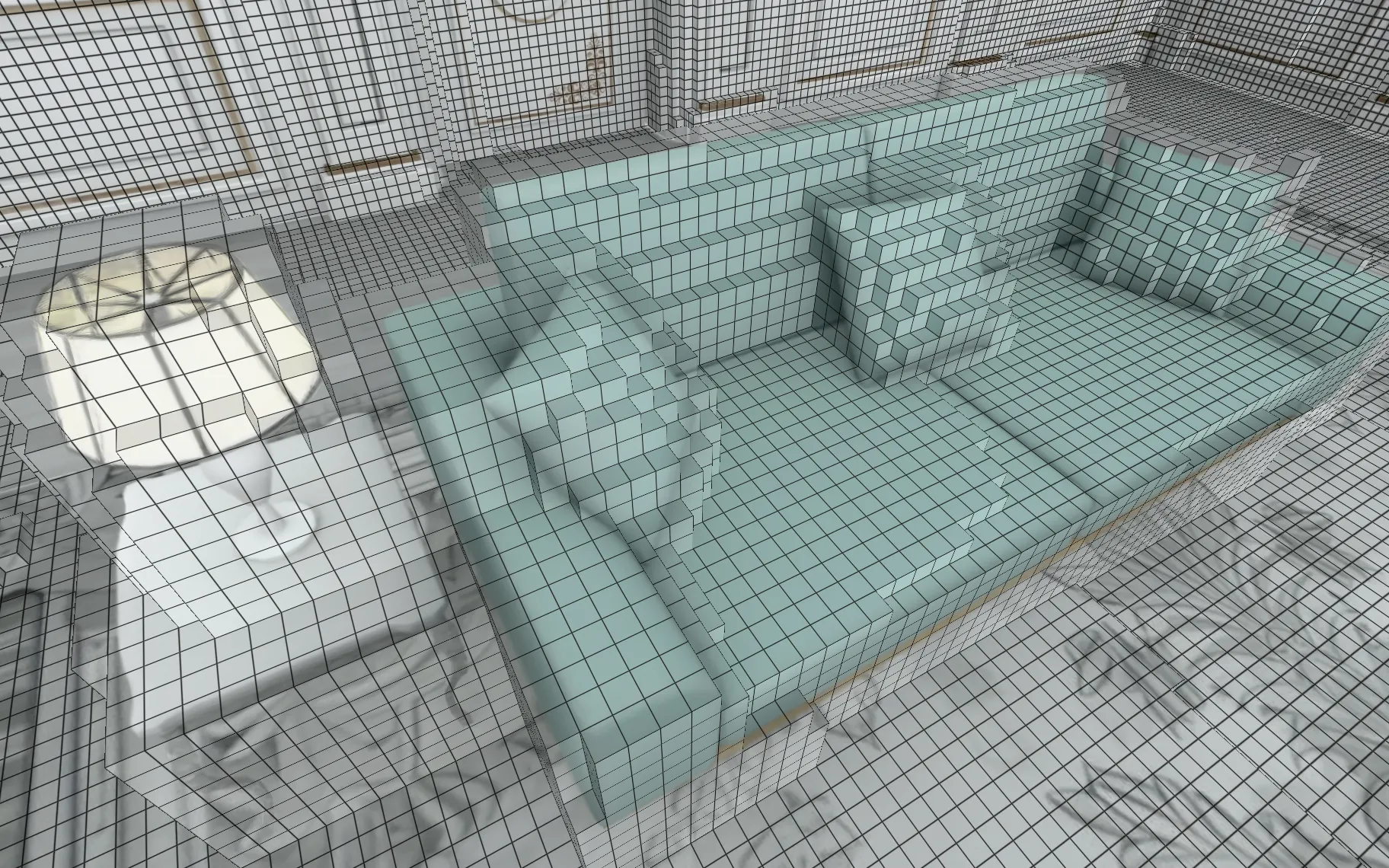
You'll typically generate it once per scene and re-generate only if the underlying splat changes significantly.
Generating voxel collision
The recommended way to add collision is to generate it directly in Studio. The Collision section of the Assets tab has a Generate button that runs a server-side voxelizer against your published splat — no files to prepare or upload.
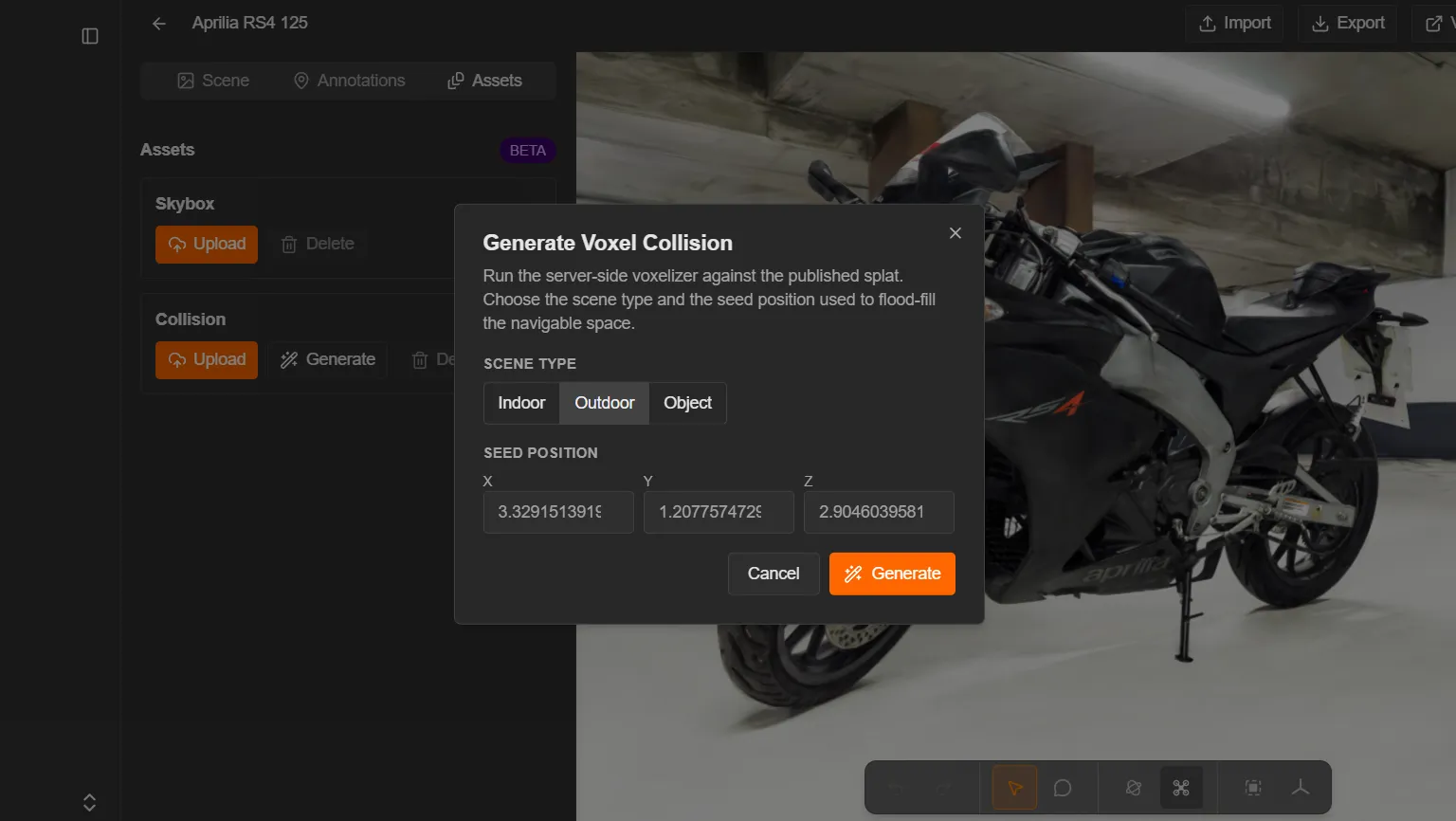
- Open the splat in Studio — clicking the splat's thumbnail only views it, so use Open in Studio (from Manage) or Edit in Studio (from the scene page). Then select the Assets tab in the left panel and find the Collision section.
- Click Generate to open the Generate Voxel Collision dialog.
- Choose a Scene type — Indoor, Outdoor (the default), or Object. This tunes the voxelizer for the kind of space you're reconstructing.
- Set the Seed position (X, Y, Z). This is the point the voxelizer flood-fills outward from to find the navigable space, so it should sit somewhere a visitor could stand. The fields are pre-filled with your current viewport camera position — frame the scene where you want before opening the dialog, or type coordinates in by hand.
- Click Generate.
Generation runs on the server and usually takes a few minutes. The Collision section shows Generation in progress. Reload to refresh status. while it runs — Studio doesn't poll, so reload the page to pick up the result. Once it completes, the scene.voxel.json and scene.voxel.bin files appear in the section and the scene becomes walkable on the next viewer reload. If generation fails, the section shows Generation failed.
If collision already exists, the button reads Regenerate, and Delete removes the current voxel asset.
The generator uses a default voxel size of 5 cm (0.05 units), which is a good fit for most scenes. To use a different voxel size, generate your collision with splat-transform and upload the result — see Uploading custom voxel collision below.
Uploading custom voxel collision
Uploading is the option to reach for when you want custom collision — for example, when the Generate button doesn't produce exactly what you want and you've authored or tuned the voxel files yourself. You can produce a compatible pair with the Convert utility in the browser, or the splat-transform CLI for scripted or batch workflows.
- In the Assets tab, open the Collision section and click Upload to open the Upload Voxel Collision Pair dialog.
- Drop in (or click to choose) the pair of files that describe the collision — a
.voxel.jsonfile plus its.voxel.bincompanion. You can add them together or in two steps. - Click Upload Voxel Pair. If collision already exists, the button reads Upload Override and replaces it.
Upload happens immediately, and the scene becomes walkable on the next viewer reload.
See also
- Convert — generate voxel collision in the browser
- splat-transform — generate voxel collision in a script or build pipeline
- Experience Settings — the JSON contract that stores scene-asset references